Macs appeal to many social media managers because they fit the creative side of the job. macOS supports tools for photo editing, graphic design, and video production. AirDrop makes it convenient to move photos and videos from a phone to a Mac for editing, and the entire setup is very portable. But as your work evolves, the toolkit expands, too. One client needs short videos, and another one has an established design workflow. You also need a separate app for approvals. Some of your projects leave behind software that no longer serves a purpose.
Reviewing that software is a small aspect of keeping your Mac ready for ongoing projects. When you get rid of an unused editor, you reclaim space for footage and exports. Ultimately, the way you manage space on your Mac improves your social media manager productivity. Let’s decide what deserves a place in your working day.
Mac Productivity Tips: Identify the Apps You Currently Need
Review all the tools you’ve installed through Finder > Applications. Think about your current clients and the tasks you’re handling right now. Maybe a seasonal campaign still needs a video editor you haven’t opened recently. But an approval app from a project you completed doesn’t have further use.
When you see an app you don’t need anymore, check what you might lose by removing it. What if an old video editor contains presets or unfinished projects you’d like to save? And when you’re certain you don’t need a particular app, follow the Mac uninstall programs guide to choose a removal method that’s suitable for it. Some apps can be simply moved to the Trash, and others provide their own uninstaller. Keep in mind that associated files may stay on your computer afterward. Remove items only when you can confidently identify them as unnecessary.
As for the apps you keep, they have to serve a clear purpose, even if you use them on occasions.
Make Space for Footage, Drafts, and Campaign Exports
Social media marketing campaigns are complex. A single project can include raw footage, edited clips, and separate exports for several platforms. You need room to download those files and save the approved versions. An unused editing app takes up space that would be beneficial for an active project.
Checking the available storage is one of the most basic macOS productivity tips that everyone needs. Open Apple menu > System Settings > General > Storage before downloading a large batch. You can see if unused apps take meaningful space. Maybe footage and other documents deserve more attention.
Apple’s performance guidance mentions insufficient startup disk space as a possible cause of slowdowns. When space is tight, removing an unnecessary large editor can help. The practical advantage is having room to work without interrupting an editing session to decide what to delete.
Check What Runs During Your Workday
You close an app’s window, but that doesn’t necessarily stop its activity. A file-sharing tool from a previous client can continue syncing, and an old collaboration app may launch whenever you log in. These things are worth checking when your Mac struggles during an editing session.
Check Apple menu > System Settings > General > Login Items & Extensions.
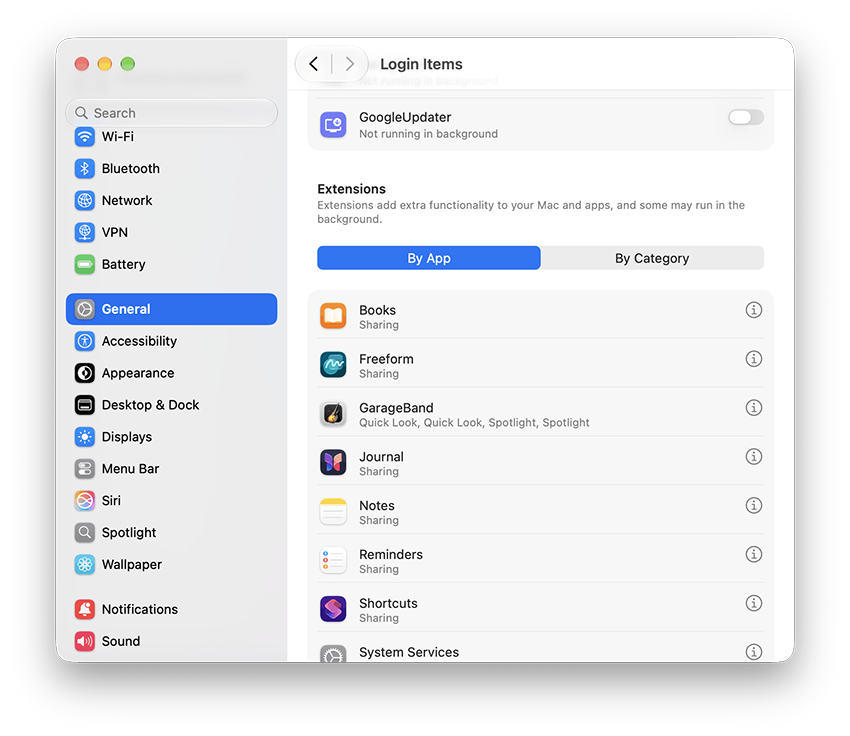
Under Open at Login, select an app you don’t need at startup and click the minus button. This removes it from the startup list, but doesn’t uninstall it. When you need the app, you’ll simply start it.
Next thing to do: review the apps permitted to perform background activity. Make sure what the tool does before you turn this permission off. Disabling a sync service your team uses will prevent new campaign files from reaching your Mac automatically.
Deal with the Interruptions from Old Workspaces
If you occasionally get notifications from a former client’s workspace but you ignore them because you don’t have time to deal with them at the moment, it’s a problem. Although the interruptions are brief, they still pull you away from the work you should focus on. When several desktop apps send alerts throughout the day, every minor interruption adds up.
Let’s handle this thing today. If a project has ended, check whether you can leave its channels, or at least sign out of the account. That’s useful when the same app also serves active clients. You can stop the irrelevant alerts but keep the conversations you need.
To take full control, open System Settings > Notifications. Select the app and adjust its alerts. Reserve immediate notifications for messages that really need a quick response.
Each Tool Needs a Clear Role
When you keep several apps with similar features, you won’t be sure where something is. You revise a caption in a notes app, copy it into a task manager, and change it again in the scheduling tool. By publishing time, you have three versions to check.
If you keep bouncing between similar tools with overlapping features, choosing a main one can make your process more consistent. You’re not just deleting icons here. The real benefit comes from simplifying the way you work.
Choose a consistent place for every stage of production. The tools can vary between clients, but everyone involved should know where to find material that’s ready to publish.
If you decide to retire an app, transfer any templates, brand assets, and notes that are still useful. Update shortcuts and team instructions that point to it, too. We don’t want someone to continue looking for files in the old location. The goal is a smooth transition, so your next campaign follows the agreed workflow.
Review the Whole Toolkit When a Campaign Ends
The end of a campaign is a great time to review its tools. You want to do this while you still remember why you installed them. Include that check in the project handover. It’s easier to make a confident decision at this point than to identify an unfamiliar app six months later.
There’s no ideal number of apps for a social media manager to keep. A specialist editor used twice a year can still earn its place. What matters is knowing why each tool is there and keeping it ready for its next task. When that purpose ends, retire it.
Save Space for the Work That Needs Your Attention
Next time you’re wondering whether to install a tool, decide what job it will handle. Does your existing software already cover that task? If it’s a trial for a particular campaign, set a reminder to review it when the work is completed. This is a small task that makes future cleanup much easier.
The most useful productivity tips for social media managers should leave more attention for decisions that need human judgment. We’re talking about things like choosing the right message, responding thoughtfully to customers, and recognizing when content needs another revision. Your Mac supports all those decisions, so keeping its software relevant to your work helps you make them without interruptions.